
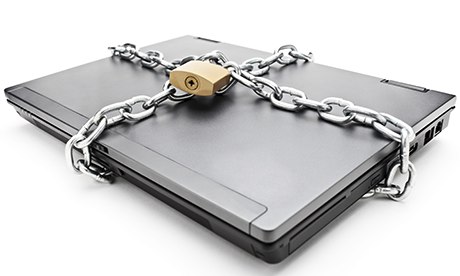
What can you do to prevent cybercriminals locking all your personal files and demanding money to free them?
A few sensible precautions will help minimise the chances of a CrytoLocker attack. So what are our top tips?

• Back up your files. If you use an external hard drive, don't leave it connected to your PC unless you are backing up. Alternatively, pay for an online back-up service – but bear in mind you may still be vulnerable if your backed-up files are mapped as a network drive. Check with your provider if you are unsure.
• Create files in the Cloud and upload photos to online accounts like Flickr or Picasa.
• Switch to a spam- and virus-filtered email service. Google Mail, for example, does not allow you to receive or send executable files (that can install viruses) as email attachments, even if they are hidden in zip files. (It also does not allow you to send them).
• Don't go to online porn sites, which are often the source of malware downloads. Take care when clicking on adverts; never open Twitter links and attachments from people you don't know or trust.
• Make sure your operating system is up-to-date with the latest security.
• Install the latest versions of your internet browsers and update add-ons such as Java and Adobe Flash.
• Get reputable anti-virus software and ensure you update it frequently.
• On Windows 7, double-check that you have set up System Restore points or, if you are using Windows 8, configure it to keep the "file history".
• Act quickly. If you do accidentally download a dodgy attachment, bear in mind it is likely to take some time for the encryption to take place. If you immediately download and run an anti-virus programme, such as the free anti-virus toolkit available from Sophos, it could destroy the CryptoLocker before all your files have been encrypted – however, you will permanently lose affected files.
• Encrypt the files you particularly want to keep private, such as documents containing your passwords or personal information, to prevent criminals from reading what's in them. Read this useful "Ask Jack" post on the Guardian technology blog to find out more about encrypting your files.
For more information on Malware attacks or anything you have read in this article please contact the IT Support Experts at Click Networks. Vist our website: www.clicknetworks.co.uk or call us on 0141 530 9116
• Back up your files. If you use an external hard drive, don't leave it connected to your PC unless you are backing up. Alternatively, pay for an online back-up service – but bear in mind you may still be vulnerable if your backed-up files are mapped as a network drive. Check with your provider if you are unsure.
• Create files in the Cloud and upload photos to online accounts like Flickr or Picasa.
• Switch to a spam- and virus-filtered email service. Google Mail, for example, does not allow you to receive or send executable files (that can install viruses) as email attachments, even if they are hidden in zip files. (It also does not allow you to send them).
• Don't go to online porn sites, which are often the source of malware downloads. Take care when clicking on adverts; never open Twitter links and attachments from people you don't know or trust.
• Make sure your operating system is up-to-date with the latest security.
• Install the latest versions of your internet browsers and update add-ons such as Java and Adobe Flash.
• Get reputable anti-virus software and ensure you update it frequently.
• On Windows 7, double-check that you have set up System Restore points or, if you are using Windows 8, configure it to keep the "file history".
• Act quickly. If you do accidentally download a dodgy attachment, bear in mind it is likely to take some time for the encryption to take place. If you immediately download and run an anti-virus programme, such as the free anti-virus toolkit available from Sophos, it could destroy the CryptoLocker before all your files have been encrypted – however, you will permanently lose affected files.
• Encrypt the files you particularly want to keep private, such as documents containing your passwords or personal information, to prevent criminals from reading what's in them. Read this useful "Ask Jack" post on the Guardian technology blog to find out more about encrypting your files.
For more information on Malware attacks or anything you have read in this article please contact the IT Support Experts at Click Networks. Vist our website: www.clicknetworks.co.uk or call us on 0141 530 9116

